Our Mission
For our capstone project, we set out to create a solution to an unrecognized problem. We trusted that the skillset we have developed throughout our years in school had prepared us for what we wanted to achieve, and that was to create a useful application for a company that could not only benefit from it, but that we believed deserved it. The Stride Learning Center is a company is focused on helping students with executive functioning needs like ADD, ADHD, and dyslexia. Mentors that work for Stride are assigned to students, ranging from middle school to high school, who simply need a little extra help when it comes to organization and time management. Through weekly meetings, students and mentors create checklists for the week, study and work on homework, and actively communicate with one another in order to assure each student’s success.
While our primary goal was to create a platform for safe communication, we also wanted to add a user friendly planning feature that wouldn’t add to the stress that comes with a busy school schedule. The Stride Learning App is aimed at streamlining the communication and planning tools that are already used by students and mentors. With this sense of simplicity, we hope to alleviate some of the stress that any student may experience during the school year while also providing an incredible company with an application that will aid in their mission; to prepare students for success.

A message from the CEO of Stride Learning
Brandon Slade
“This is a truly transformational app for our startup“
– Brandon Slade
The App
For our audience, we aimed to create a simple application that is easy to navigate while also providing our users with a structured planning feature that is paired with a basic means of communication.
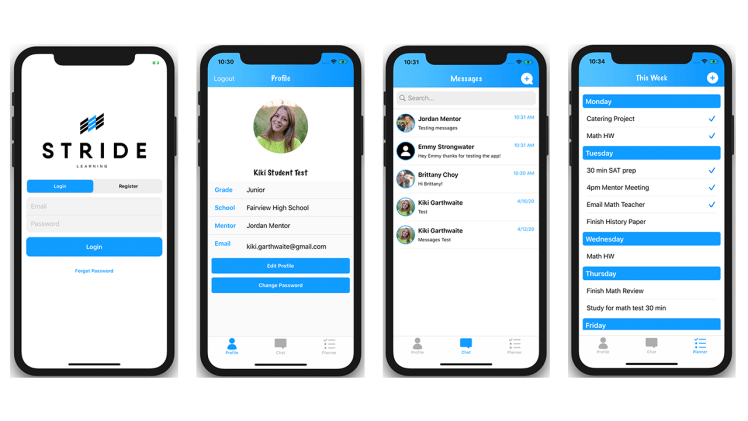
Thus, the primary features of our app are the registration/login process as well as our three-page display below. A profile page with information about the user, varying on whether or not that user is a student or a mentor, followed by the messaging page and our unique planner function with access to last week, this week and next week.
We used Stride’s already-branded blue consistently throughout the app alongside a friendly and playful navigation text to ensure the app remained on-brand and was inviting yet professional.
Test Flight
We invite and encourage you to download the app and play around with it yourself! For Test Flight you can login with our pre-made student/mentor accounts:
- Mentor – Email: stridementortest@gmail.com Password: !1qqqqqq
- Student – Email: stridestudenttest@gmail.com Password: !1qqqqqq
Functional Documentation
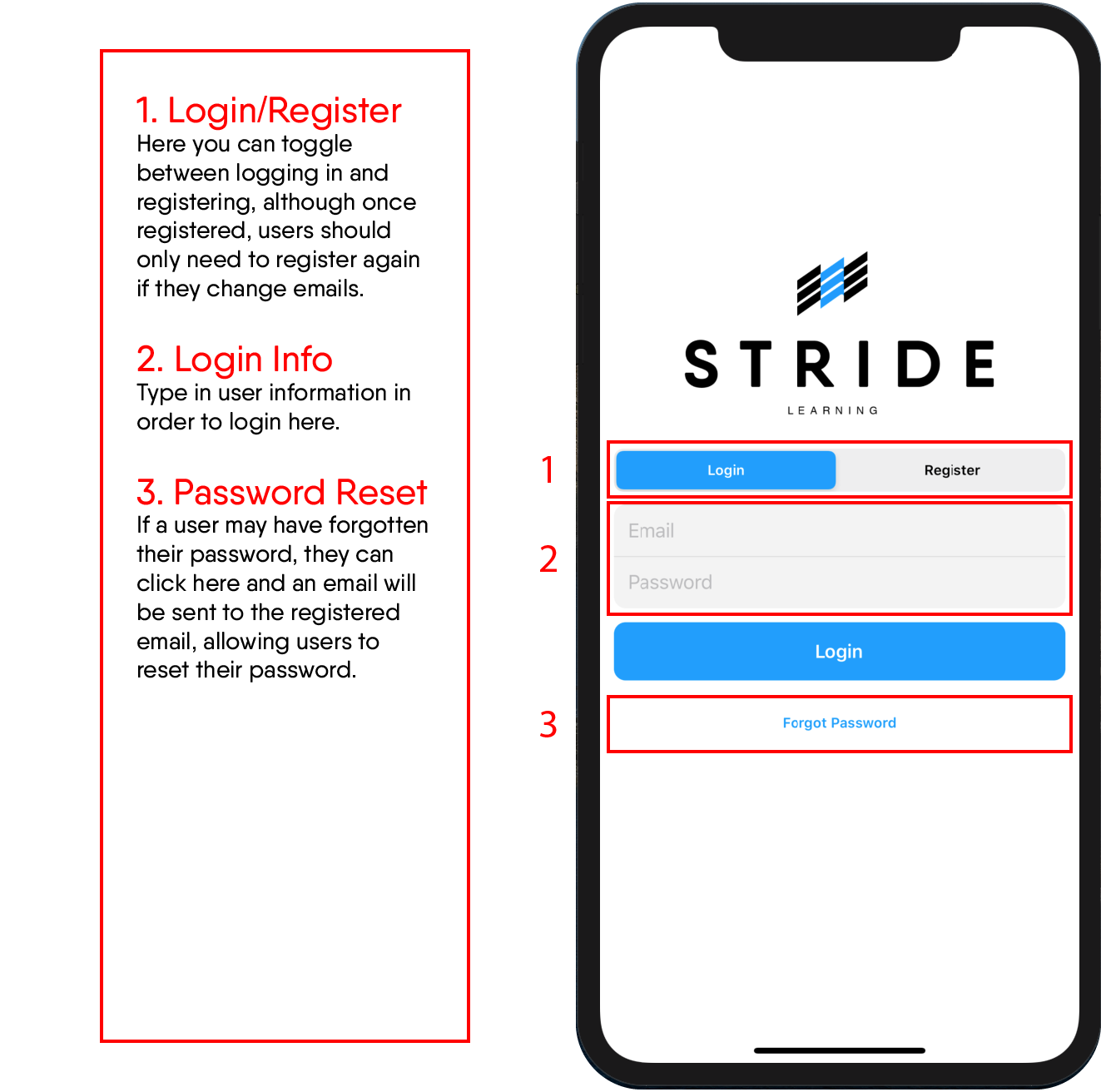
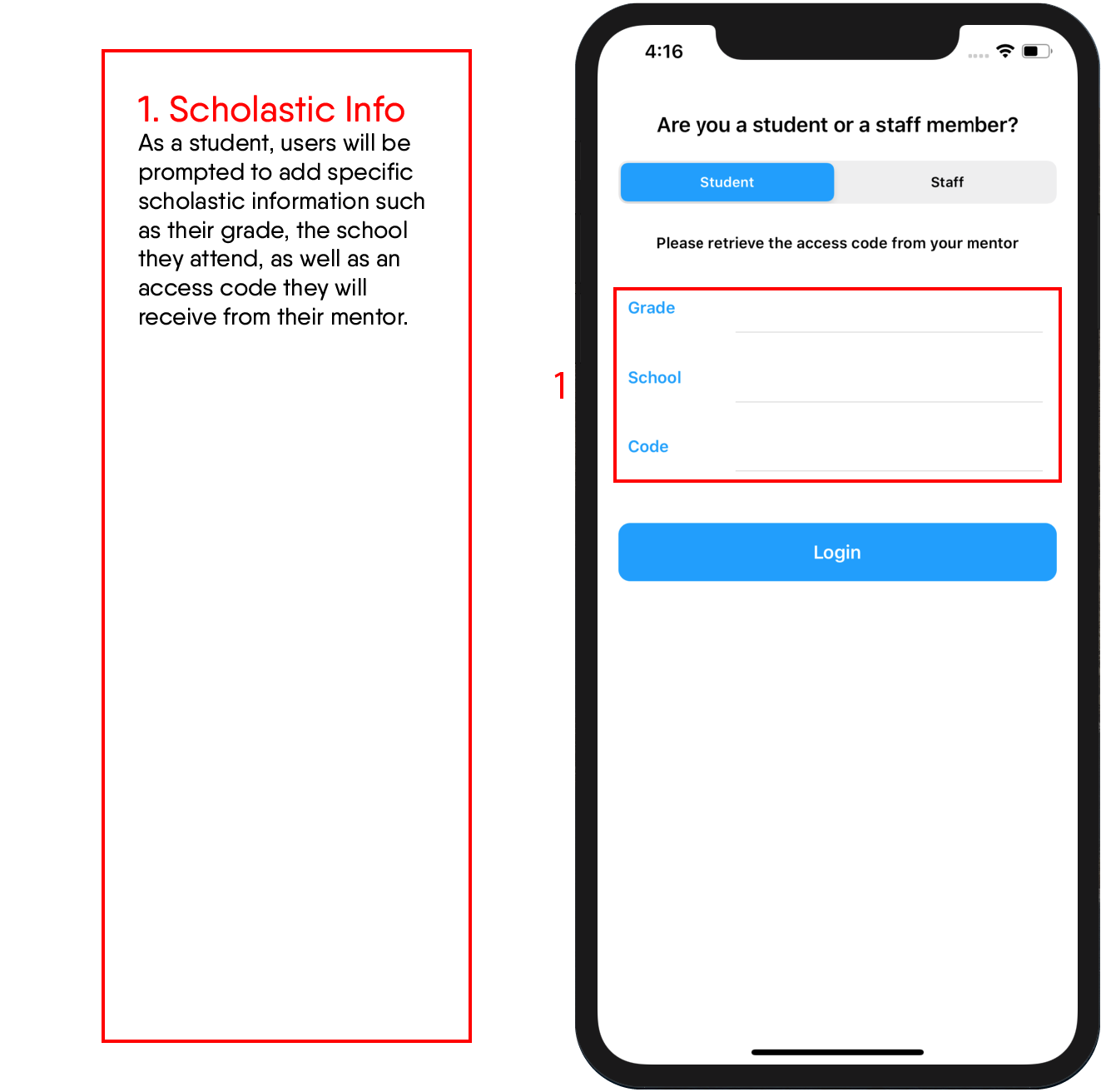
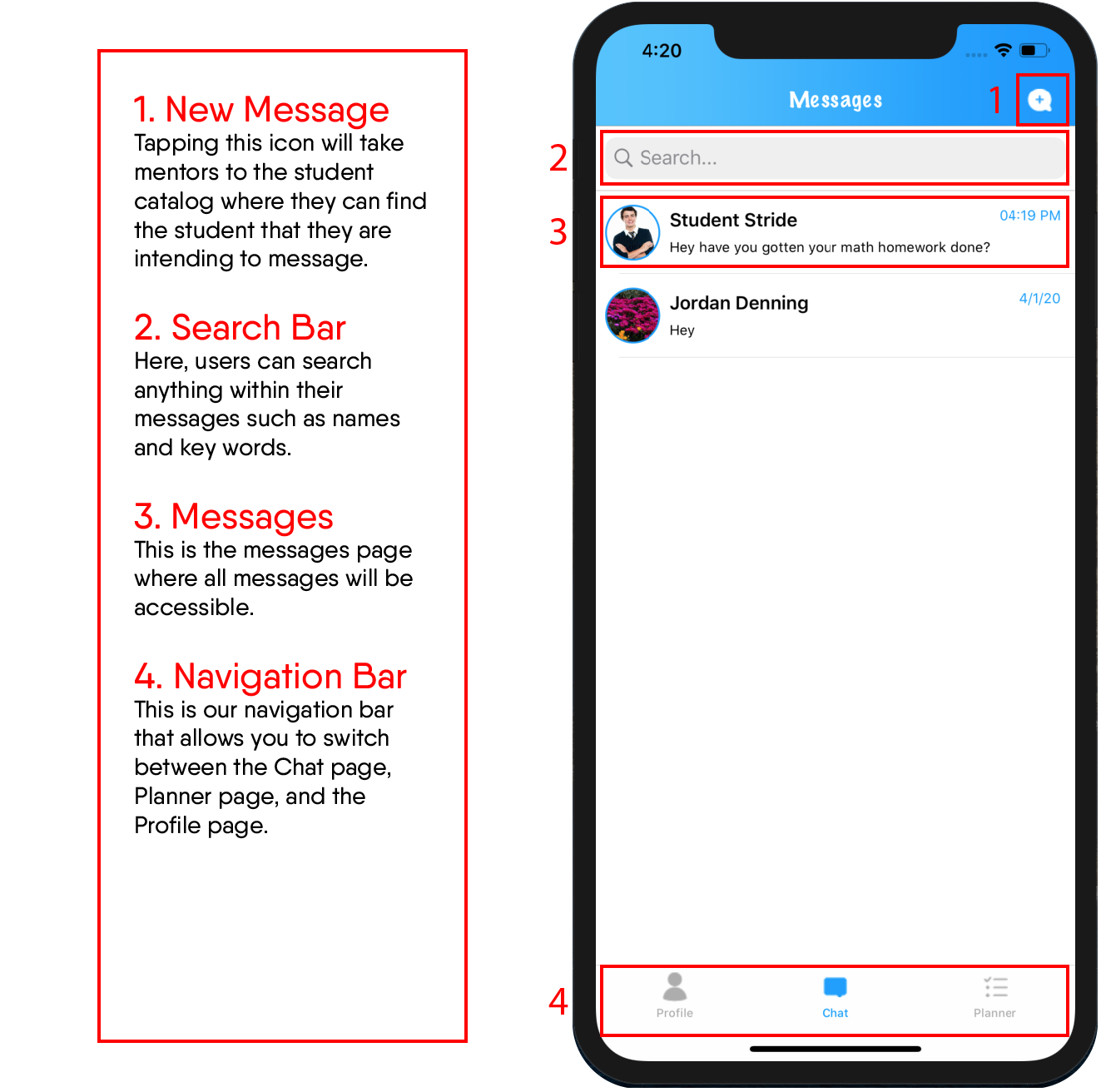
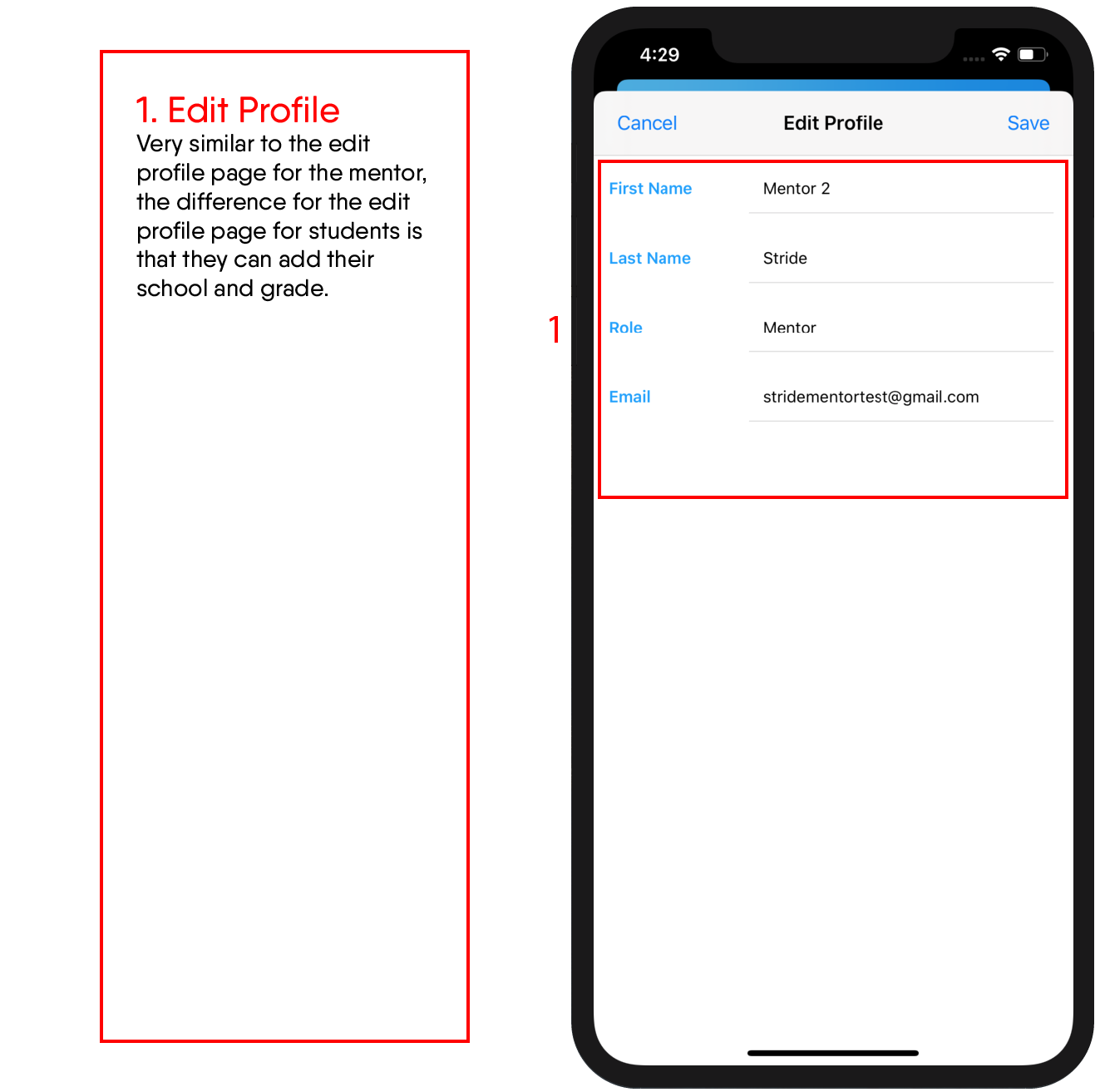
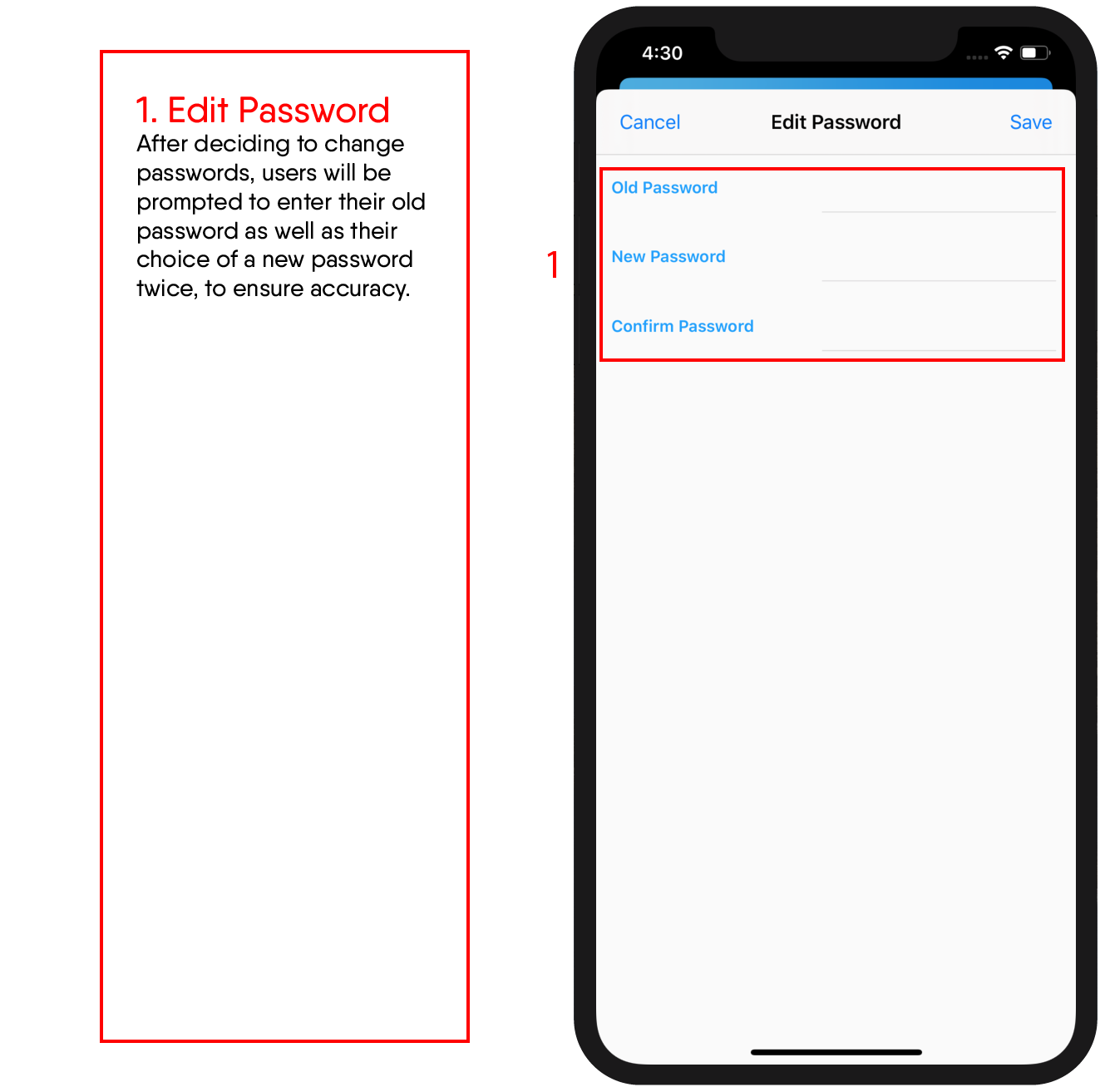
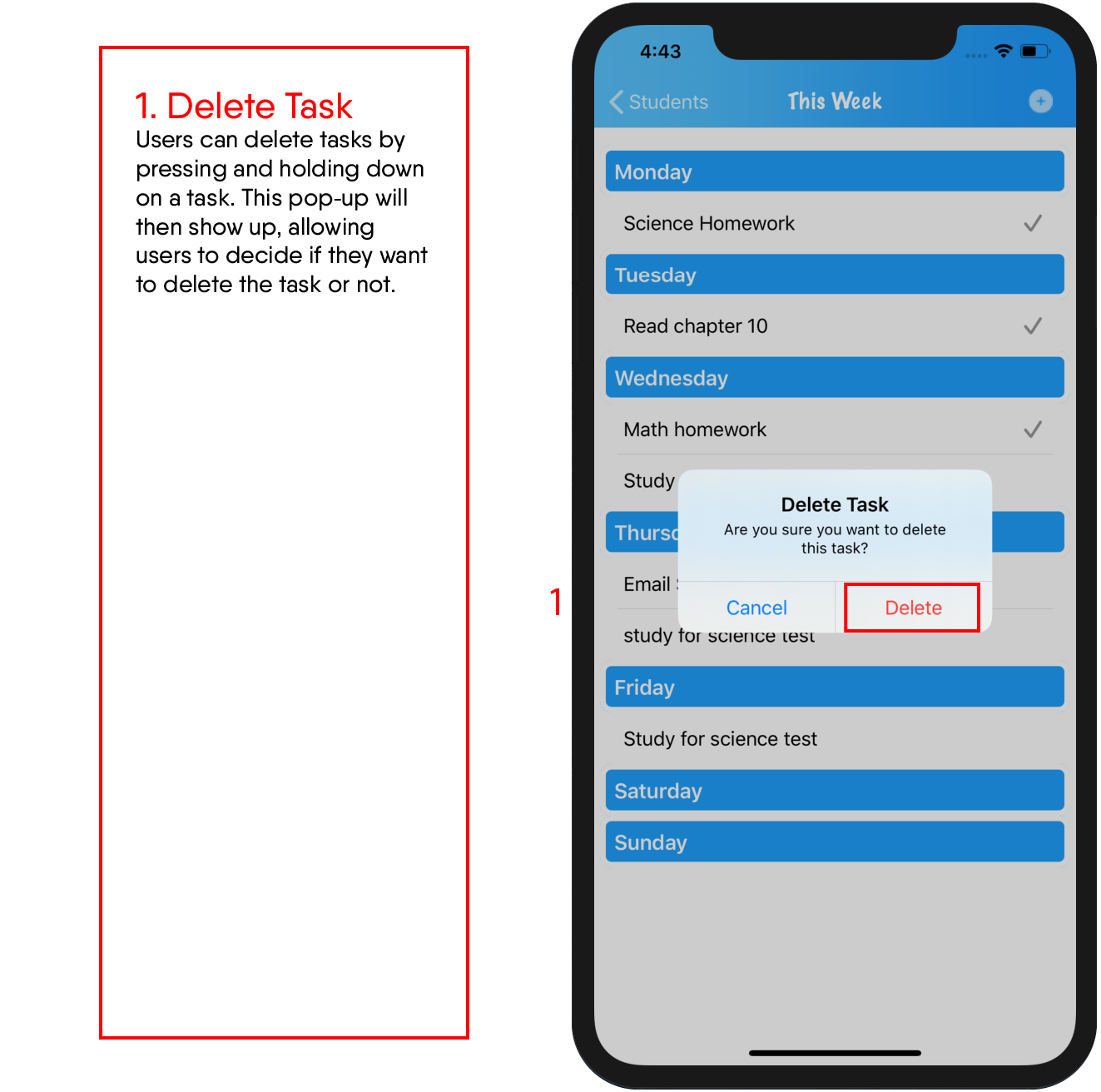
Before any design took place within Xcode, we built out the full functionality of our app. While the initial stages did not look pretty, approaching the project in this way allowed our team to work well together as our designers and developers were able to work one step ahead of (or behind) one another.
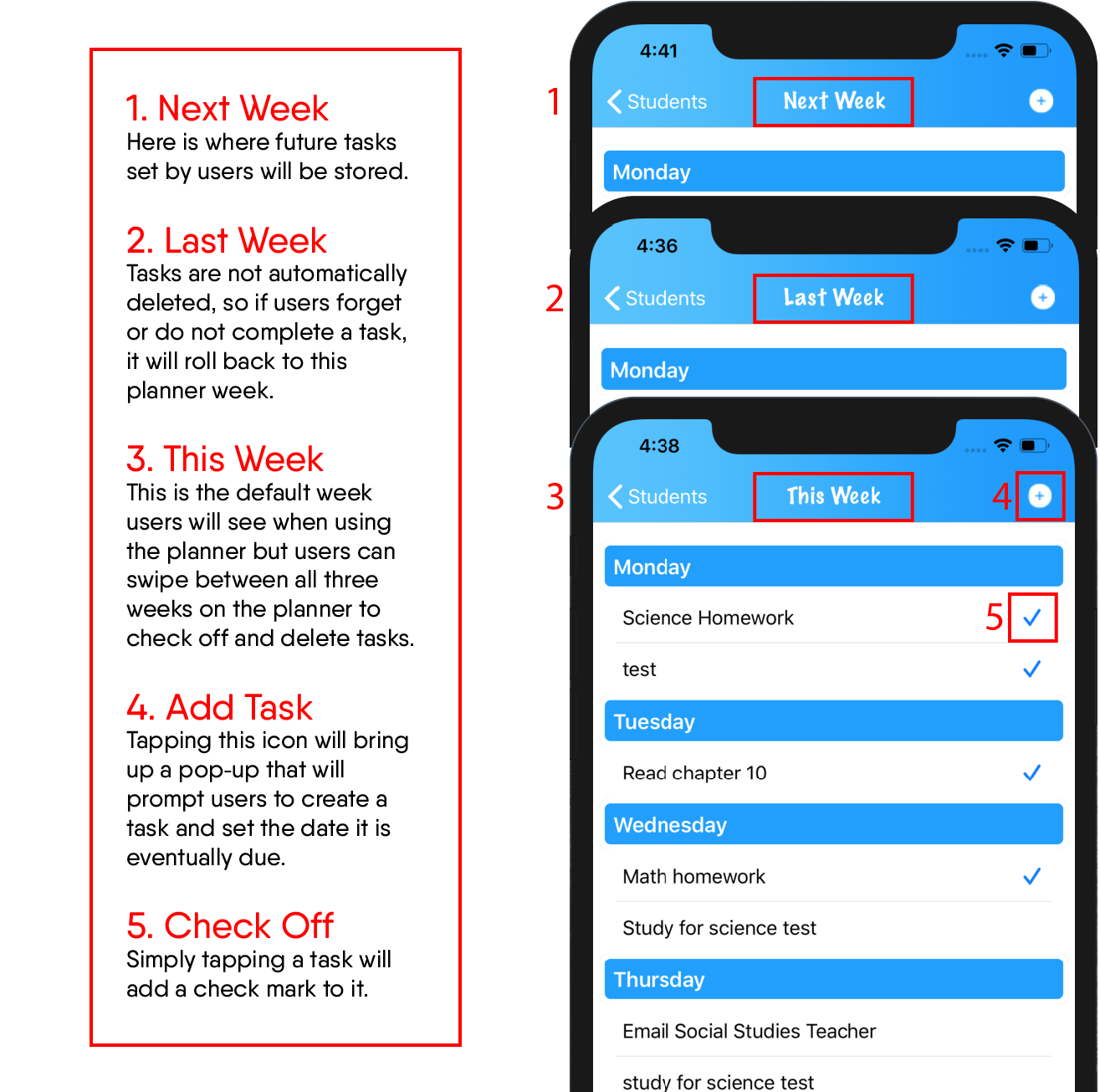
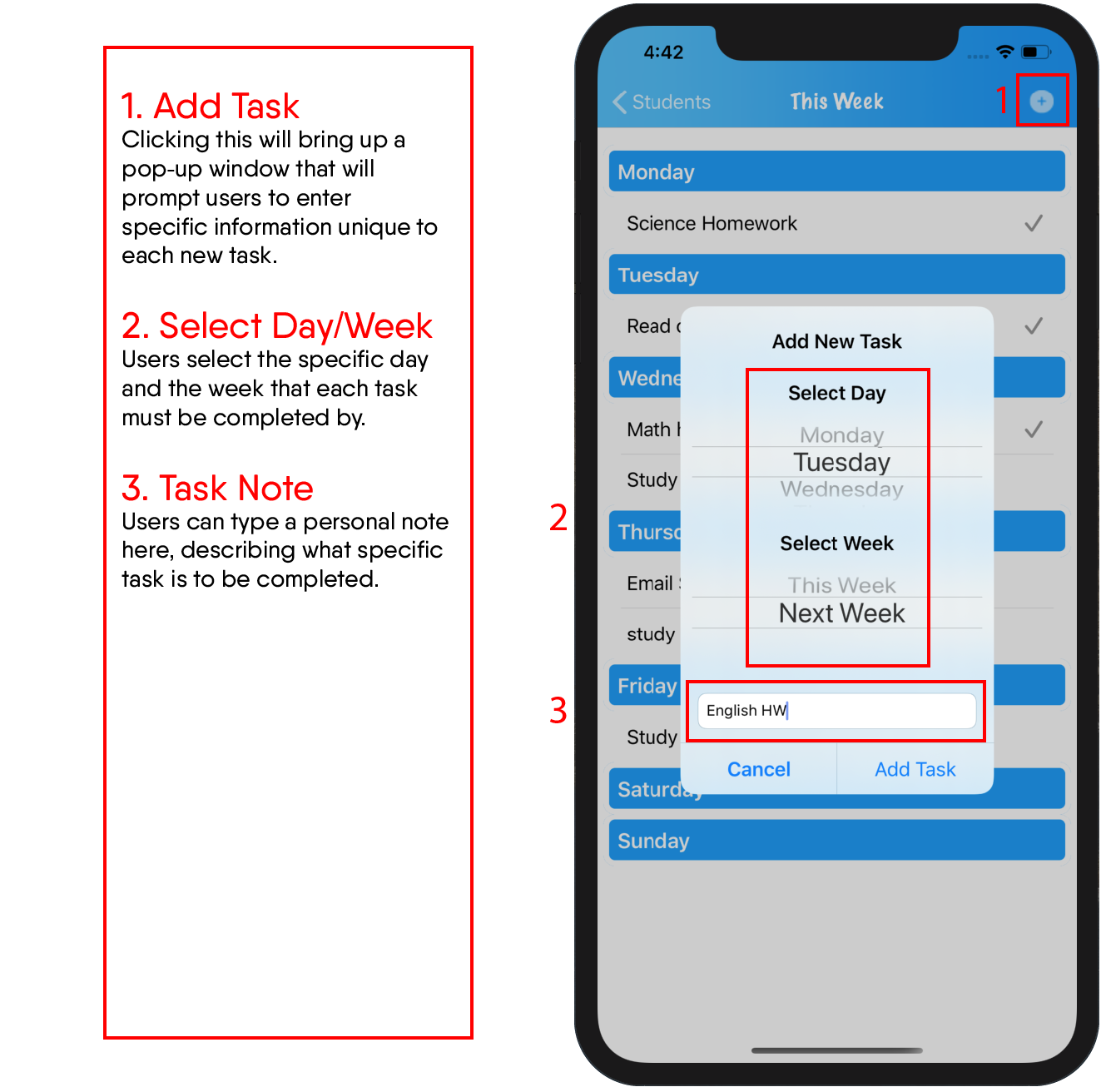
We’ve outlined the core functionality page-by-page. If you still have questions, be sure to watch the app demonstration video above.



Technical Documentation
While it would be impossible to explain every line of code, we’ve broken down the most important features into manageable blocks. The pieces of code that make our app unique are copied here, with a brief explanation of what’s going on behind the scenes.
For all of the code that went into the project, please visit our GitHub.
API Choice: Firebase
Since the chat-based feature was the main component of this app, a lot of research went towards determining the best API to do this. We researched various APIs such as Scaledrone, PubNub, and Stream, but we ultimately ended up going with Firebase due to its ability to sync real-time data, its powerful authentication system that is easy to implement, its potential to scale, and more. Additionally, Firebase archives all messages indefinitely until the database is manually cleared, which is an important feature Stride was looking for since they wanted to keep a record of message threads in case legal issues arise.

Two User Types: Student & Staff
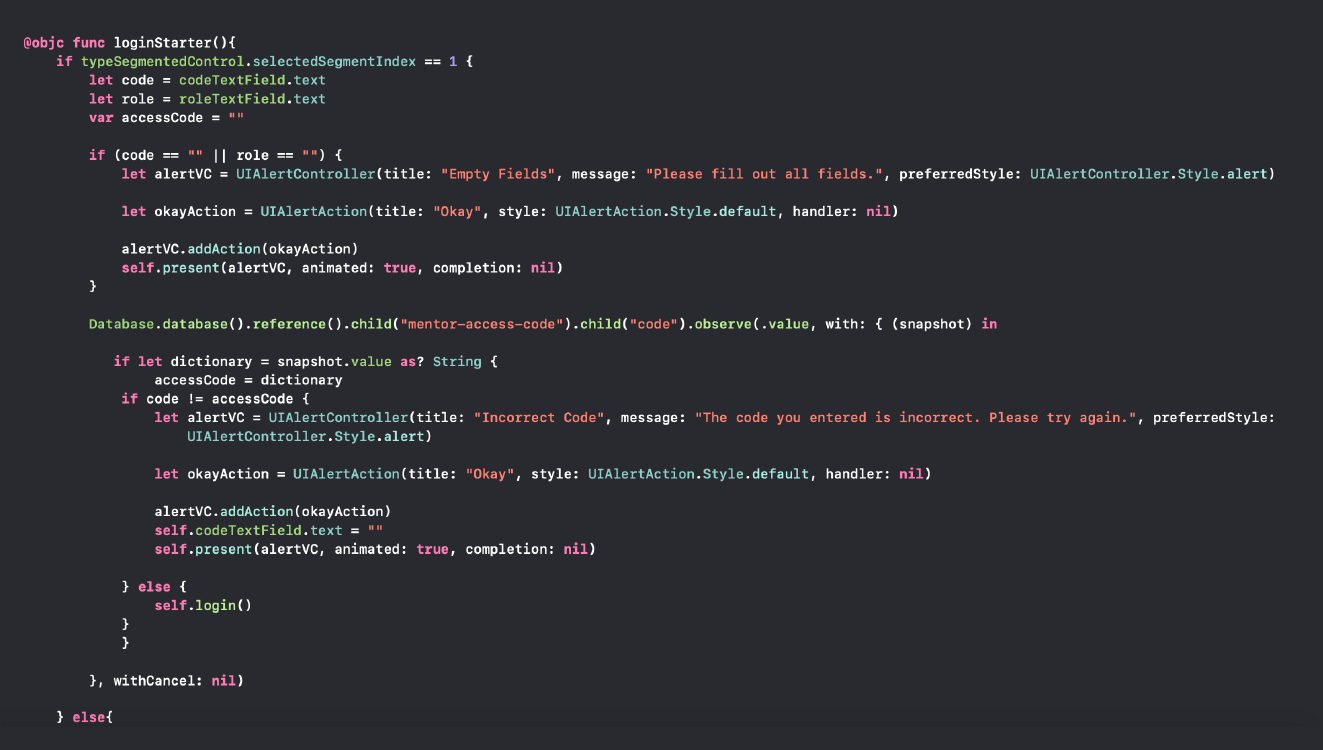
The user path diverges in the registration process where they must sign up as either a student or a staff member. There are two unique codes for both of these user types, and they are stored within the Firebase. These codes keep the Stride Learning App secure and prevent strangers or bots from getting into the system. We did this by creating the function loginStarter() that checks if the inputted code matches the one in the database for the selected user type. These codes will be distributed by the lead Stride staff members when needed. Since these codes are stored within Firebase, Stride also has the power to update them for security purposes every so often.
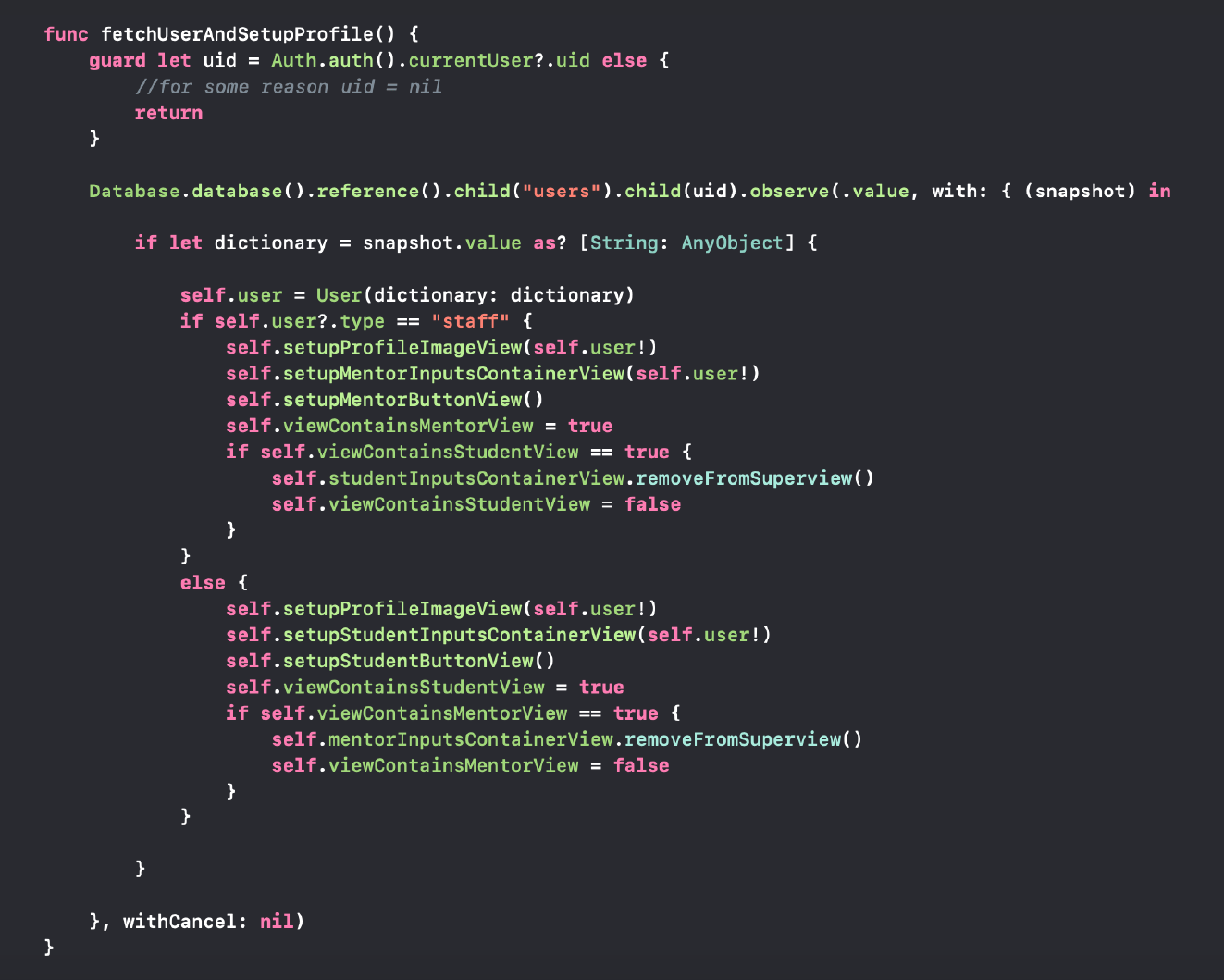
After registering and logging in, the profile and planner page load differently depending on the user type. Within these pages, there is a setup function that checks the current user’s register type, and will then load their respective views.
Messaging
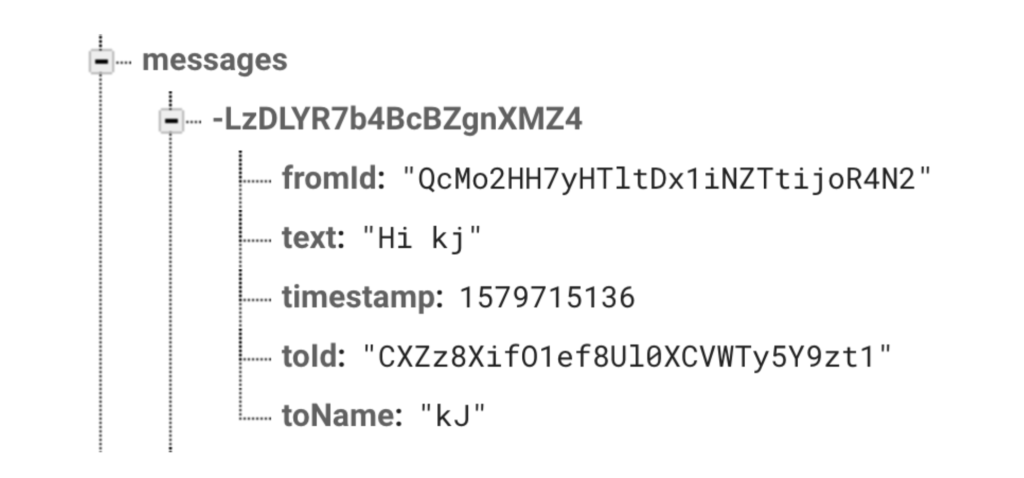
Each message instance is stored within Firebase with important information such as who the message was from, what the message contains, when it was sent, and who it was sent to.
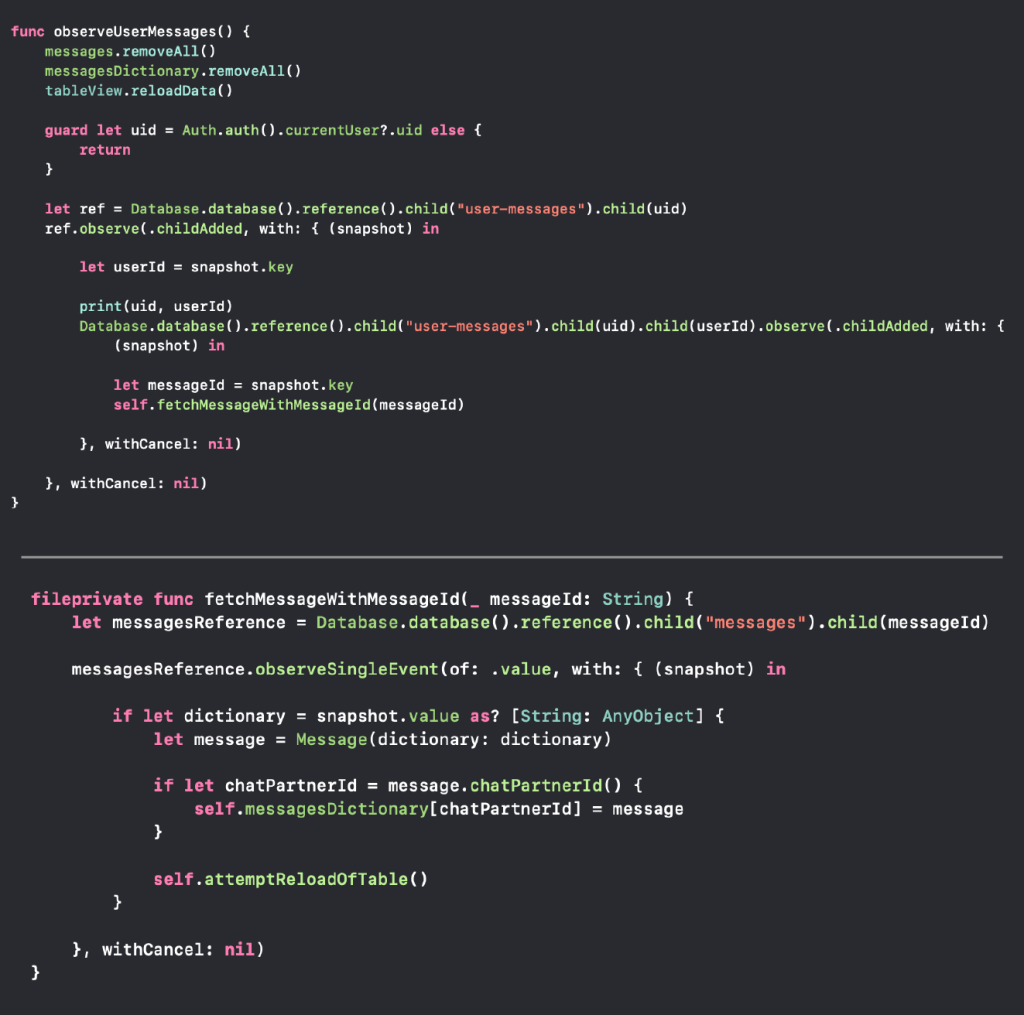
When the messages page loads, the function observeUserMessages() is called where the currently logged-in user’s unique messageId is grabbed and fed into the function fetchMessageWithMessageId(). fetchMessageWithMessageId() then grabs all of the message threads associated with that messageId to be displayed. These functions are what allow the user to view only their own messages and prevent any other user’s message threads from showing.
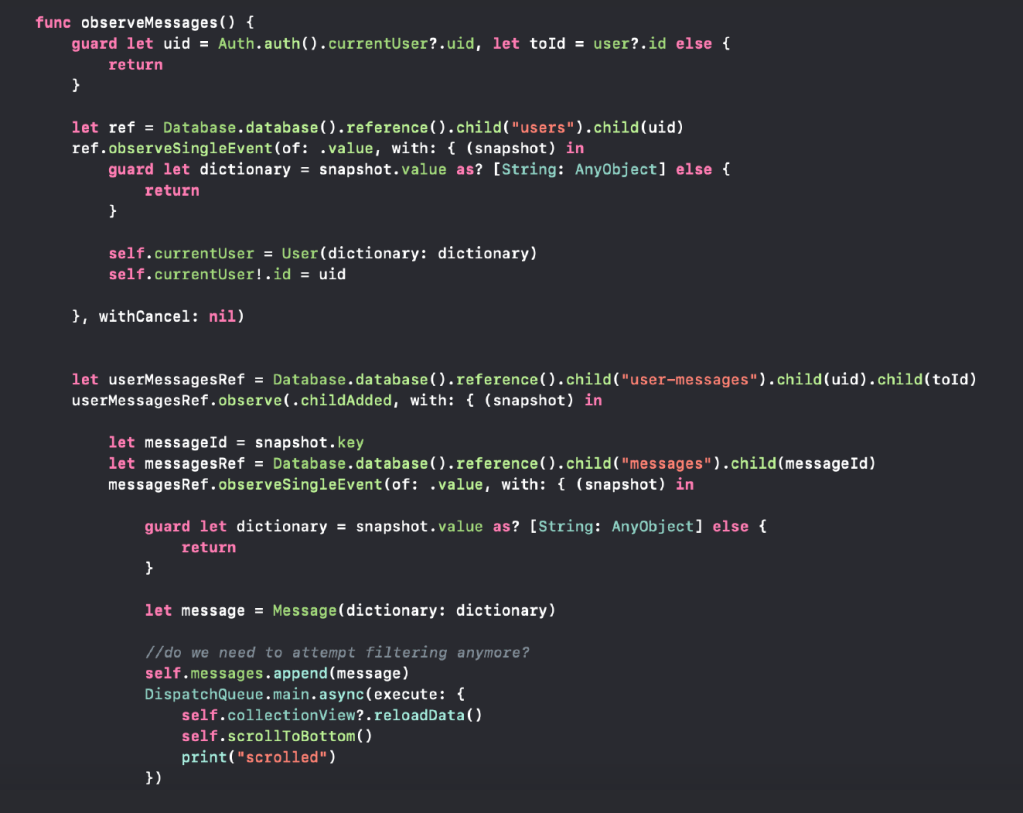
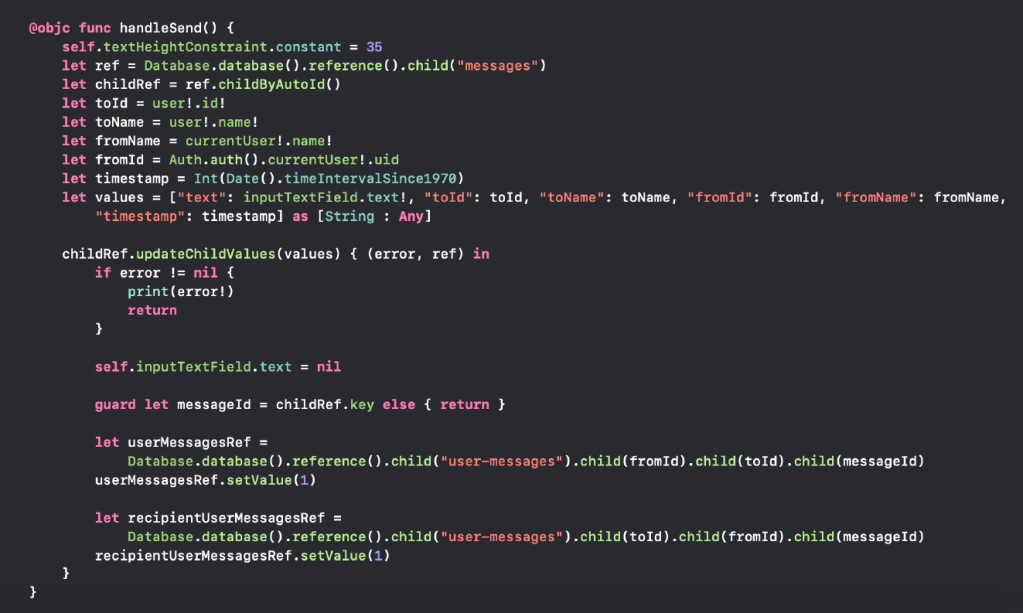
When a user enters a chat log, observeMessages() pulls all the messages sent and received between the user who is currently logged in and the user id of the selected chat log. Whenever a new message is sent, the table that contains all the messages refreshes in real-time so that the chat log is up to date at all times. In handleSend(), each message sent is written to the Firebase with all the information mentioned earlier: toId, toName, fromId, fromName, timestamp, and the text of the actual message is all recorded into the database to be accessed and called when needed.
Planner
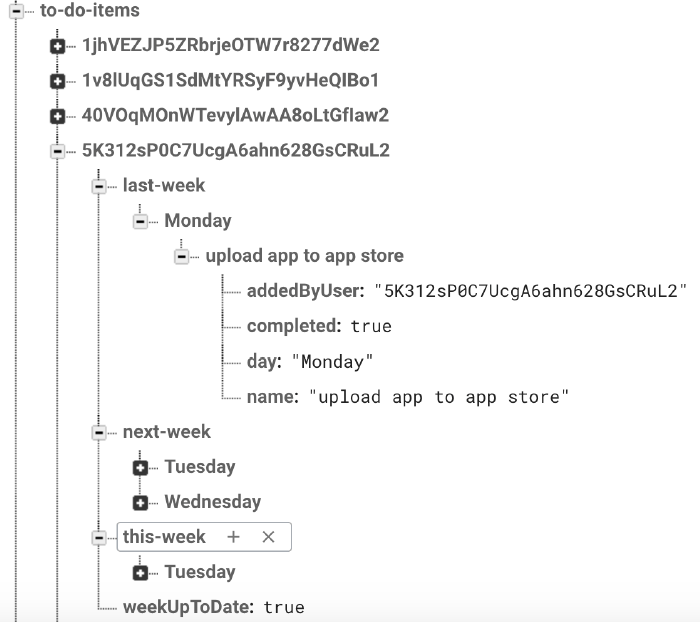
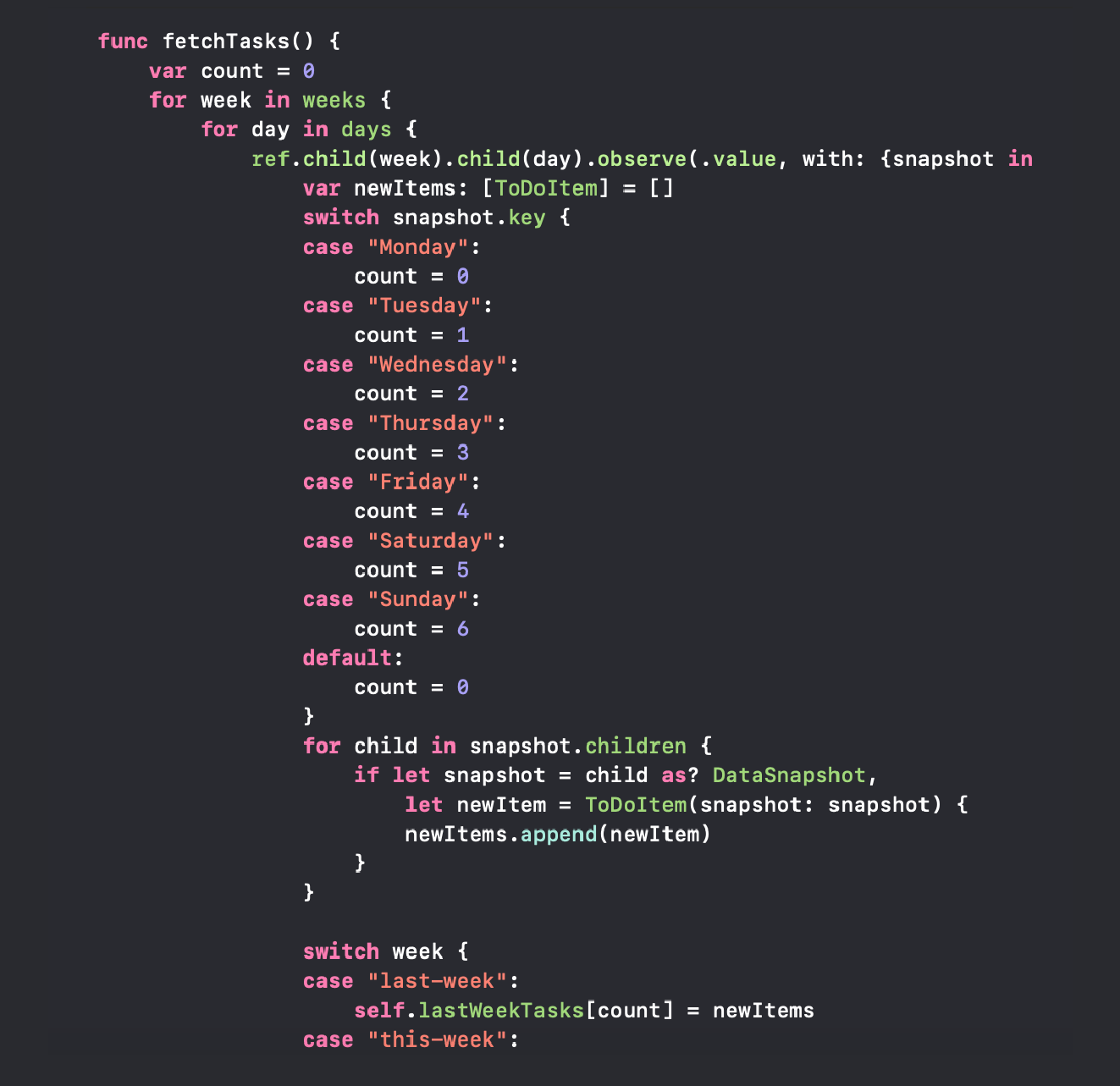
In the planner page, each task is stored within the to-do-items section within Firebase. Each user has their own set of tasks for last week, this week, and next week. Each task contains important information: who it was added by (this could be done by the student or mentor), whether or not it has been completed, and the day it’s been assigned to. In the function fetchTasks(), the current user’s task tree is iterated through to populate each weekly spread.
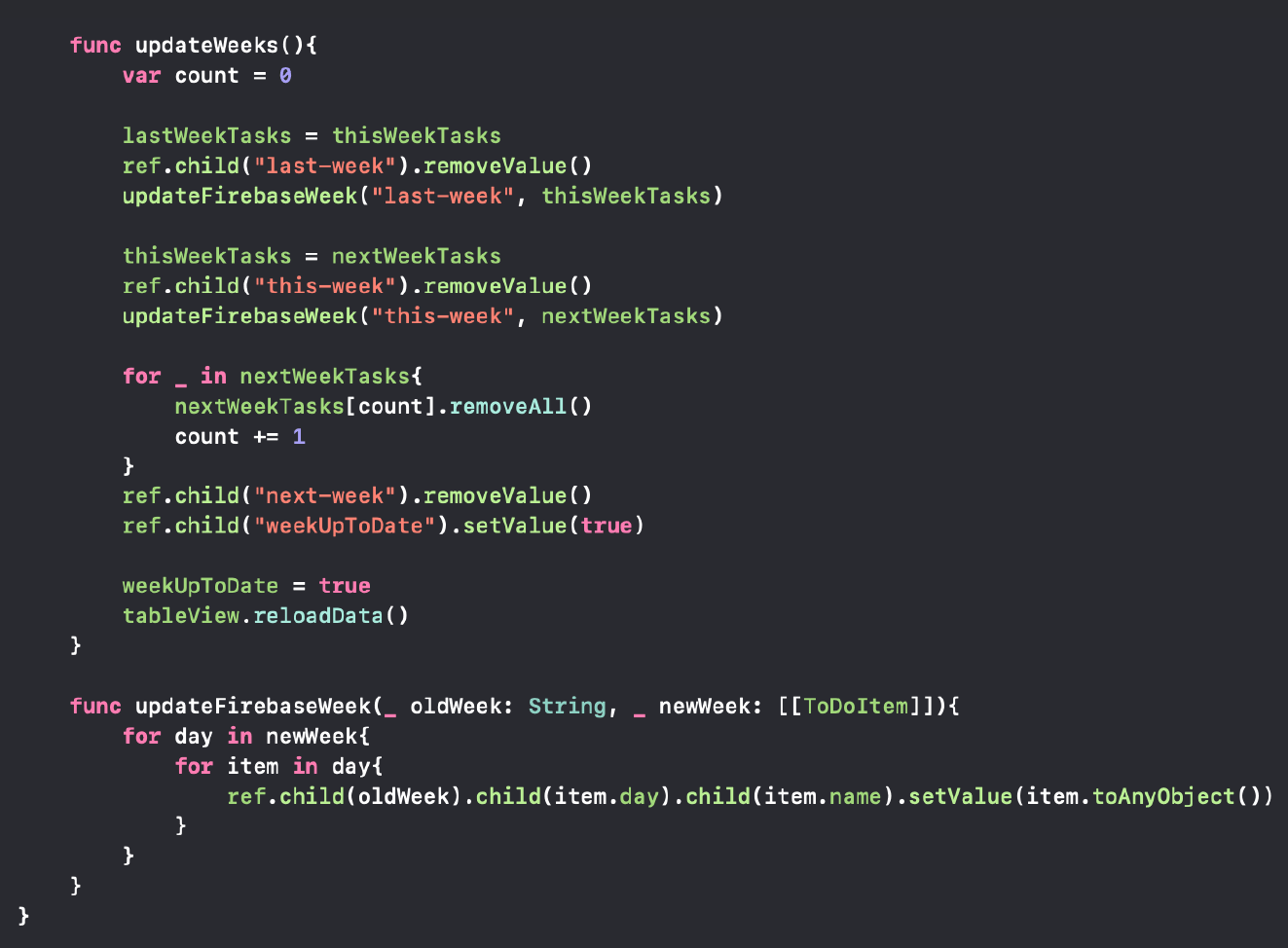
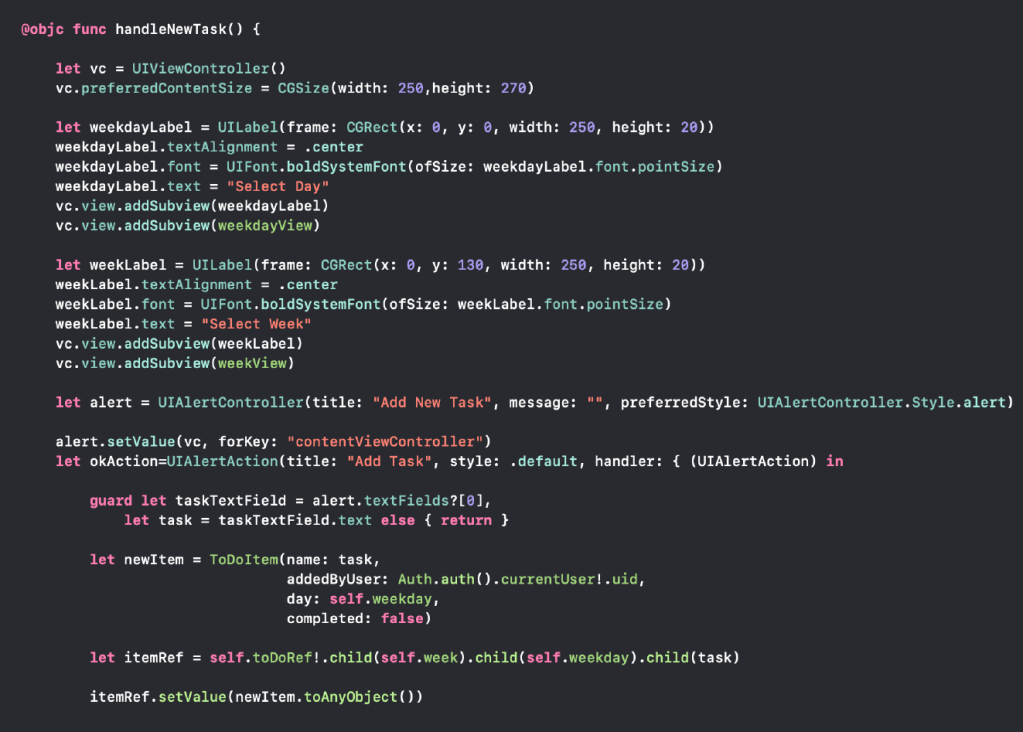
The function handleNewTask() brings up an alert with two pickers and a text input field. The two pickers allow the user to select the day of the week they want to add the task to, which week it should be assigned to (either this week or next week), and the name of the task. Within the Firebase, there is also a weekUpToDate flag which gets checked and updated in the function updateWeeks(). In fetchTasks, at the end of the week, weekUptoDate is set to false and updateWeeks() gets called. updateWeeks() moves all the tasks around to reflect the change to the new week. This week’s tasks move to last week’s list while next week’s tasks move to this week’s list. This change is also reflected in updateFirebaseWeek() where each value in the tree is updated and moved under their respective new weeks.
Mentor Student Connections
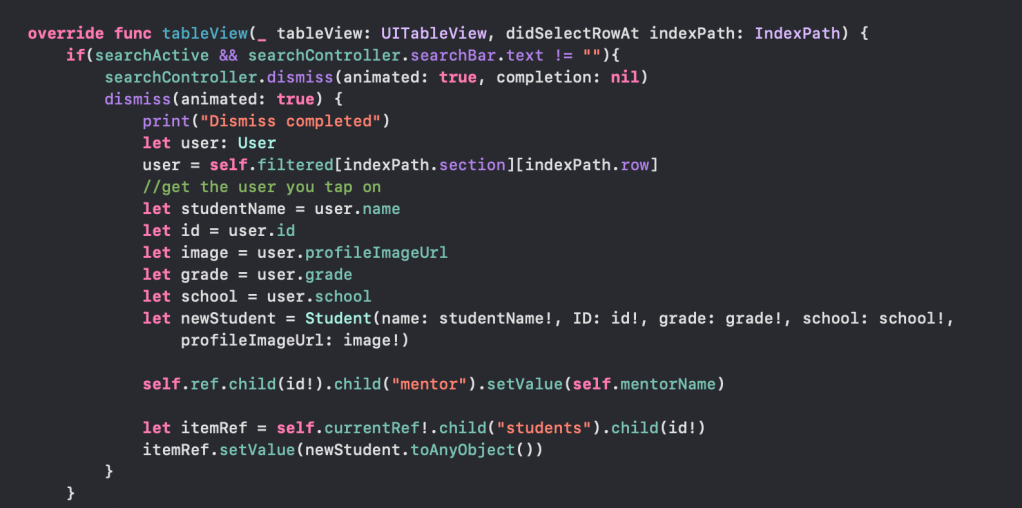
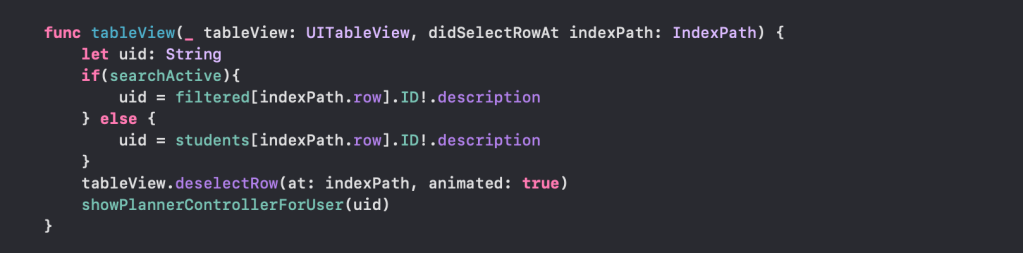
Mentors have a member, called “students”, that is a list of students they work with. To add new students they go to a Student page that loads users only if they’re user type is “student”. By clicking on the student’s name in the tableView and using the tableView function for didSelectRowAt, that student gets added to the mentor’s student list. Information such as their UID, name, grade, school, and profile picture get stored to the list as a new Student object. Adding a student to a mentors list also sets the students mentor to the mentor that added them. If they delete them as their student their mentor gets changed to “No Current Mentor.”
A mentor’s student list is loaded with the function fetchStudents(). This draws all the information from their “students” member and populates the tableView.
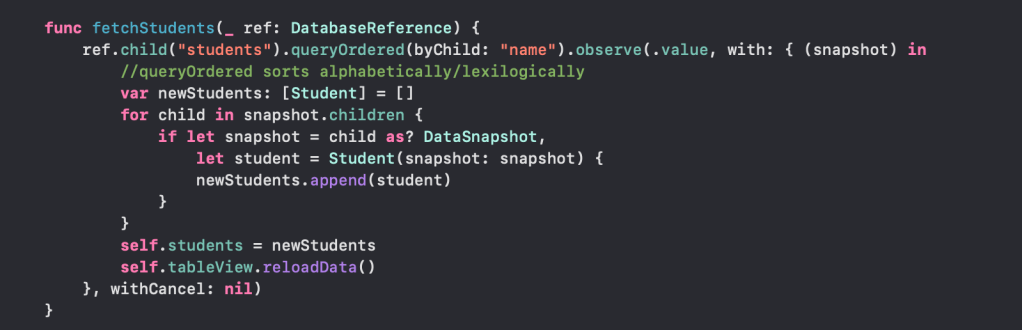
When a mentor selects a student from their list on their Students tableView, that student’s planner gets loaded. Mentors have another member, “student”, that contains one student UID at a time to show which student is currently selected, this gets set once they select someone from their list in the didSelectRowAt function and the showPlannerControllerForUser() function is called.
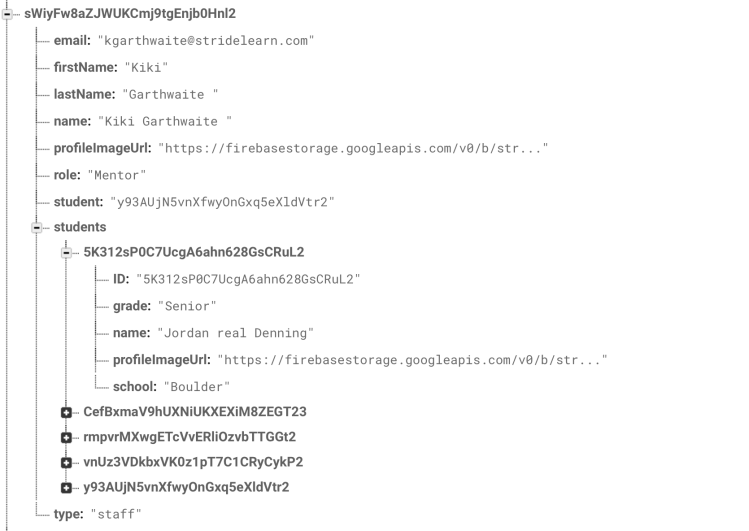
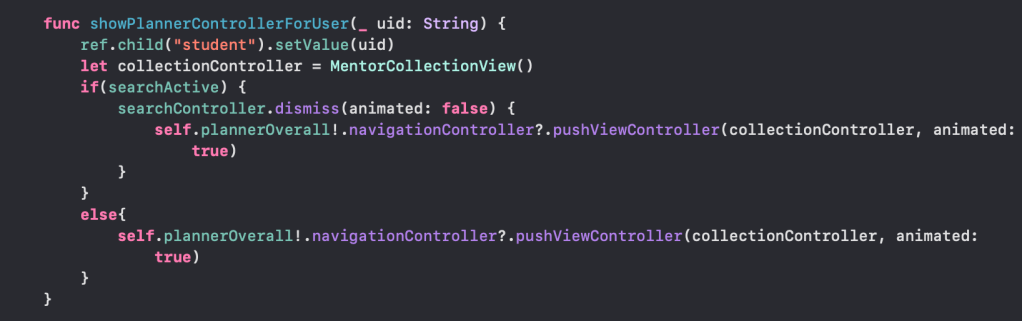
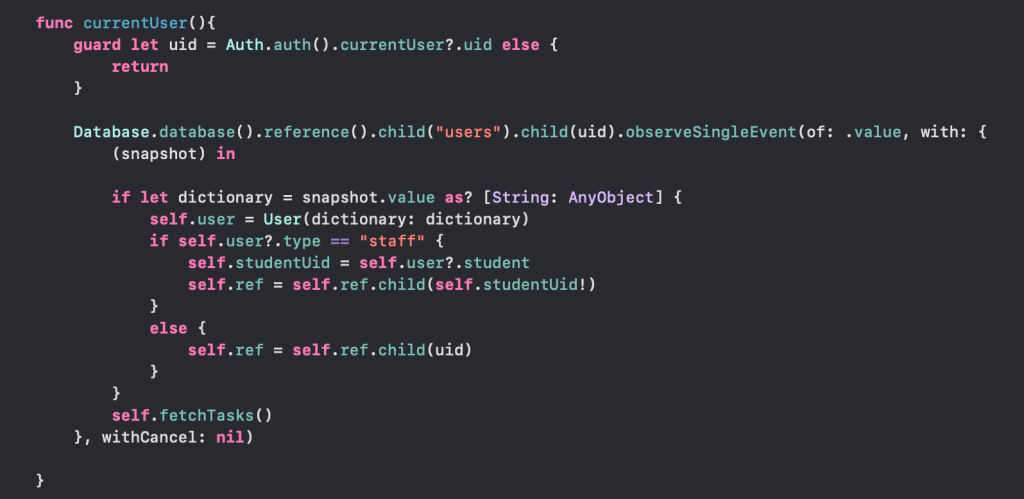
The planner tasks are loaded based on a UID. The planner page has a function currentUser() that checks whether the user is a student or staff. If they are a student, their personal UID is used as the database reference. If they are staff, that current student UID from the “student” member is what gets used as the database reference. Then a function fetchTasks() is called that uses the correct database reference for the specific user to load their weekly plan.
A Big Thank-You To Our Mentors
Nicky Britt
Capstone Instructor
Michael Condon
Mobile App Developer at Wunderman Thompson
Brandon Slade
CEO & Founder of Stride Learning
Danny Rankin
Creative Technologies and Design Instructor
For a deeper look into our entire process, including week-by-week goals and updates, please visit our process blog:
 Stride Learning Mobile Application